 Back to articles

J and L Cuts: An Essential Video Editing Technique for Seamless Flow
Arthur Araratian - Post-Production Lead | September 4, 2026


Watch any amateur video and you'll notice it fast. The picture cuts, and the sound cuts with it, every single time. That's called a hard cut, and it works fine on its own. But when audio and video cut together at every transition, the edit can start to feel choppy or repetitive.
Professional editors often create smoother transitions with two simple techniques: the J-cut and the L-cut. Editors often call them split edits. They separate the audio and video tracks instead of cutting them together. The result is seamless video editing that feels natural, cinematic, and invisible to the viewer. That smoother flow helps keep viewers focused on the story rather than the edit itself.
In this guide, we'll break down what J-cuts and L-cuts are, how they work, and when to use each one to create smoother, more professional edits. If you'd rather leave the editing to us, get in touch with Adplus Digital to talk about your next project.
What is a J-Cut? (Audio Leads Video)
A J-cut is a split edit where the audio from the next clip starts playing a moment before its video appears on screen. You're still watching the current shot, but you're already hearing what's coming next. Look at this arrangement on an editing timeline. The audio clip extends to the left of the video clip above it, forming the shape of the letter "J."
Example:
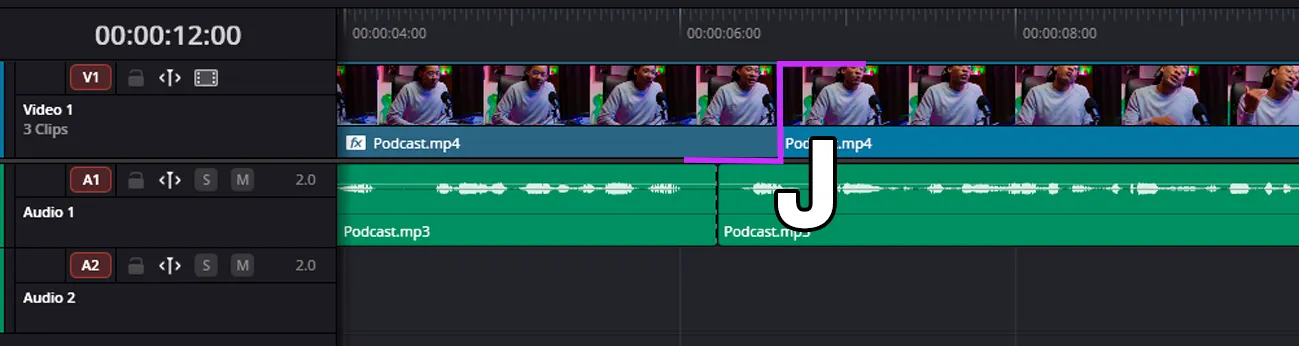
This tiny head start does real narrative work. The incoming sound primes the viewer's brain for what's about to happen before they see it. That makes the eventual cut feel expected rather than jarring.
When to use a J-cut:
- Transitioning between scenes without a jarring jump
- Introducing a new speaker in a podcast or interview, with their voice starting before the camera cuts to them
- Building anticipation right before a visual reveal
What is an L-Cut? (Video Leads Audio)
An L-cut works the opposite way. The video cuts to a new clip, but the audio from the previous clip keeps playing underneath it for a few extra beats. On the timeline, the video clip cuts away first while the audio clip trails behind it. Together they trace the shape of an "L."
Example:
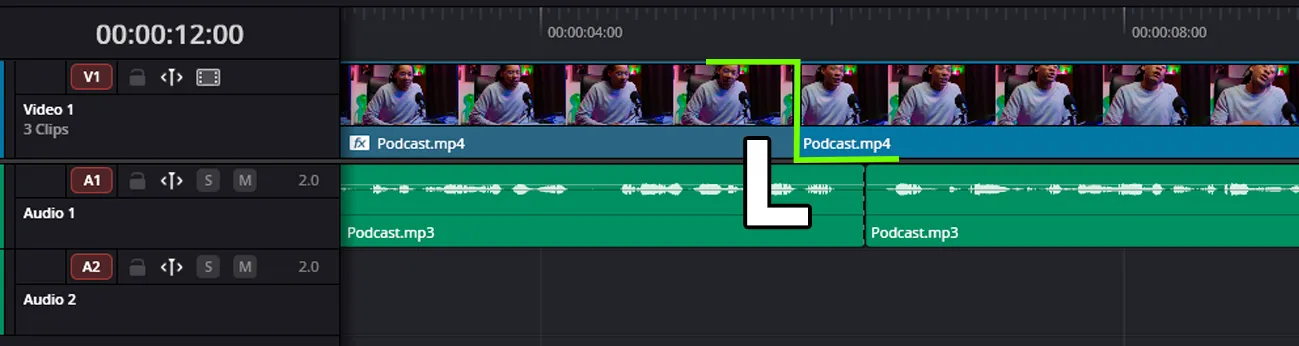
L-cuts power almost every polished interview or documentary you've watched. An editor could cut back to the speaker's face every time a sentence ends, but that looks like watching a tennis match. Instead, the editor lets the voice continue while the screen shows something more visually interesting.
When to use an L-cut:
- Layering B-roll over dialogue instead of staying on a static talking head
- Capturing a listener's emotional reaction while the speaker is still talking
- Maintaining a smooth, uninterrupted dialogue flow in interviews and podcasts
J-Cut vs. L-Cut vs. Hard Cut: A Quick Comparison
Here's how the three techniques stack up side by side:
| Editing Technique | Audio Behavior | Primary Purpose | Best Use Case |
|---|---|---|---|
| Hard Cut | Audio and video cut together | Fast, direct scene changes | Action sequences, quick pacing, montages |
| J-Cut | Next clip's audio starts before its video | Builds anticipation, eases transitions | Scene changes, new speakers |
| L-Cut | Previous clip's audio continues after its video ends | Smooths dialogue, supports B-roll | Interviews, B-roll overlay, reaction shots |
Commercial & Social Applications: Why This Matters for Your Brand
Split edits aren't just a filmmaking flourish. They can also support viewer retention. On YouTube long-form content, L-cuts can make interviews more engaging by pairing compelling visuals with continuous narration. This can help maintain a smoother viewing experience and support watch time. On Instagram Reels and TikTok, J-cuts help brand promos feel snappy and intentional rather than stitched together. Even podcast video clips benefit from the same trick.
This level of polish also depends on subtle audio design. Editors rely on crossfades, room tone matching, and careful attention to levels so the audio never jumps during a split edit. Editors working in a DaVinci Resolve, Premiere Pro, or Final Cut Pro all follow the same principle. The smoother the transition sounds, the less the viewer notices the edit.
Videographers, marketing teams, and personal brands producing content at scale need both strong pacing and an efficient editing workflow. Getting every cut right across dozens of videos a month is a real production challenge. That's where a reliable post-production partner makes a difference. Explore our post-production services to see how we support creative teams at scale.
How to Edit Smoother Videos: Getting Started
Learning how to edit smoother videos with J-cuts and L-cuts starts with your raw footage. Always record a few extra seconds of audio before and after your main dialogue. This "handle" gives you room to split the tracks apart later. From there, most modern NLEs make split edits simple:
- Unlink the audio and video clips on your timeline
- Slide the audio earlier (for a J-cut) or the video earlier (for an L-cut)
- Trim and crossfade so the transition sounds natural
- Preview with headphones, since audio issues are easier to hear than see
Conclusion: Master the Split Edit, Master the Story
Hard cuts have their place, but J-cuts and L-cuts are two of the techniques that can make an edit feel more polished and intentional. They smooth transitions, sustain dialogue, and keep viewers engaged instead of noticing the seams. Whether you're editing a YouTube series, a brand promo, or client interviews, these split-edit techniques are foundational to seamless video editing.
Want to focus on creating content and leave the editing to us? We're here for it. Get in touch with Adplus Digital to book a discovery call, send us your footage for a sample edit, or request a post-production estimate.
Frequently Asked Questions
The difference is timing. In a J-cut, the next clip's audio starts before its video appears. In an L-cut, the previous clip's audio keeps playing after its video has already cut away. The letter shape shows how the audio and video blocks line up on the editing timeline.
Audio and video tracks are normally locked together. Editors deliberately split them apart and offset them in time, which is why we call them split edits. This split lets sound lead or trail the picture instead of changing at the exact same moment.
Yes. Every major NLE supports split edits natively, including DaVinci Resolve, Premiere Pro, and Final Cut Pro. The process stays the same across all three. Unlink the audio and video, drag one ahead of the other on the timeline, then trim and crossfade for a clean transition.
Need Help With Video Editing?
If you want your expert videos to look clean, engaging, and professional, our post-production team is here to help. Whether you need editing, colour grading, sound cleanup, subtitles, or final delivery formats, send us the files and we'll handle the rest. Book a quick call and we'll discuss the best next steps for your edits.